Overview
There are three ways to reach a machine's record in the app — scan its GoTag, browse the Equipment tab, or tap it on the Start tab's Recent Equipment card — and they all land in the same place: the equipment page, where the pre-start starts. This article covers each path, and the rules that decide which machines you can see at all.
Scanning a GoTag
- 1From the Start tab, tap Scan equipment tag.
- 2
Point your camera at the GoTag's QR code, or tap your phone to its NFC chip — one sheet offers both, and the app remembers which you used last.
- 3
The app opens that exact machine's page directly — no searching, and no ambiguity about which machine you mean in a yard full of similar equipment.
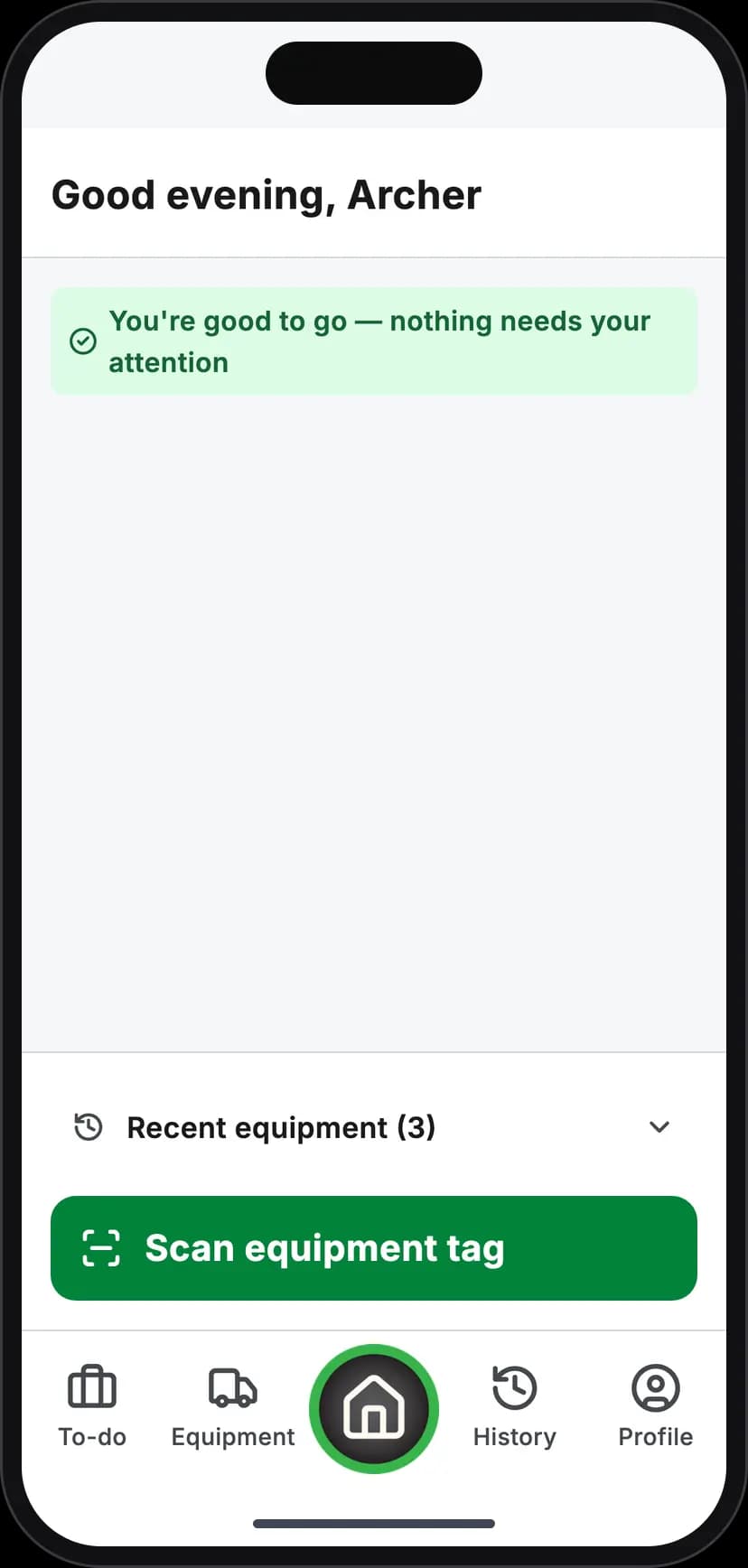
Tap Scan equipment tag to start
Scanning is the recommended way to start an inspection precisely because of that last point — but it is not enforced. See Scanning a GoTag for the QR-vs-NFC details and public scanning.
Browsing
The Equipment tab lists machines — as a list, or on a map showing last-known positions. The list is scoped to you: it shows equipment in groups you hold a licence for, not the organisation's whole fleet. Tap a row for the machine's page, with its Logbook, Defects, and Equipment info.
The Start tab's Recent Equipment card shortcuts the machines you've inspected lately — for the daily-driver machine, it's usually the fastest path of the three.
What decides which machines you see
Your list is built from your licences, group by group:
| Situation | What you see |
|---|---|
| Active licence for the machine's group | The machine, fully actionable |
| Expired licence for the group | The machine stays visible, with a renew prompt — it doesn't vanish confusingly |
| No licence for the group | Not in your list |
| Machine in no group at all | Not in anyone's list — every licence is group-scoped, so no licence can match |
Scanning is broader than browsing: a scan of any of your organisation's machines opens its page with basic details even outside your licensed groups — nothing hidden, nothing broken — but instead of a working pre-start button you'll see an "Unavailable" notice explaining that an operating licence for that group is required.
Deep links
GoTag QR codes are ordinary links, so they work from anywhere — a code scanned with the phone's camera, or tapped in a message, opens straight into the app when it's installed. Codes for other PreStartGo surfaces (a site or kiosk QR) show guidance for that surface instead of an error.
Edge cases
- Borrowed machines — equipment hired in to your organisation appears once your organisation has classified it into one of its own groups and you hold a licence for that group. Until it's classified, it can't be inspected by anyone on your side — see Cross-Org Equipment Rental.
- A brand-new machine registered in the office appears in your app after your next sync — pull to refresh if you're standing in front of it.
- The map's positions are last-known — from the most recent pre-start, or live for machines carrying a Tracker.
Troubleshooting
| Symptom | Likely cause | What to do |
|---|---|---|
| A machine you operate isn't in your list | No licence for its group, or the machine is ungrouped | Ask your admin to check the licence and the machine's group |
| Scan opens the machine but Start is "Unavailable" | The machine's group is outside your licences | See Licensing Operators |
| Scan shows "not found" | The tag isn't installed against any machine | A Technician can fix the tag — see Re-Tagging Equipment |
| A borrowed machine is missing | Not yet classified into your organisation's groups | See Cross-Org Equipment Rental |
| List is empty after first sign-in | The first sync hasn't completed | Get coverage and pull to refresh |