Overview
This article covers the console mechanics of working a defect from Reported through to Closed. For the status model itself — what each status means and what moves a defect automatically — see Defect Management Workflow; this is the how-to layer on top of it.
Before you start
- Plan
- Any
- Role
- Contributor or above to work and close defects; Administrator or above to lift an out-of-service lockout by hand
Finding a defect to work
- 1
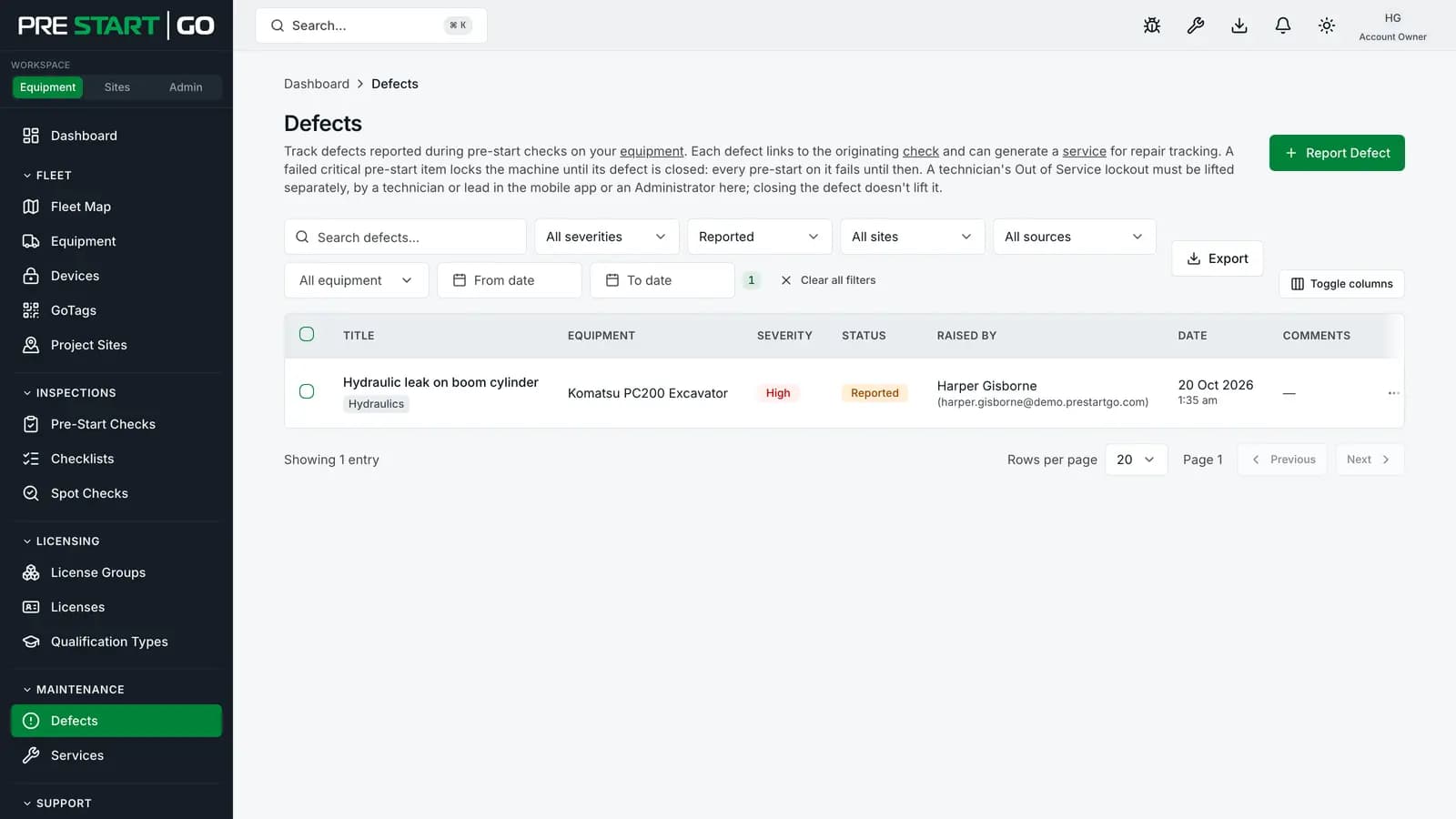
Open Defects in the sidebar — a table with search, a Severity filter, and a Status filter.
- 2
Filter Status to Reported for the untriaged queue, and search by equipment name when you're after something specific.
- 3
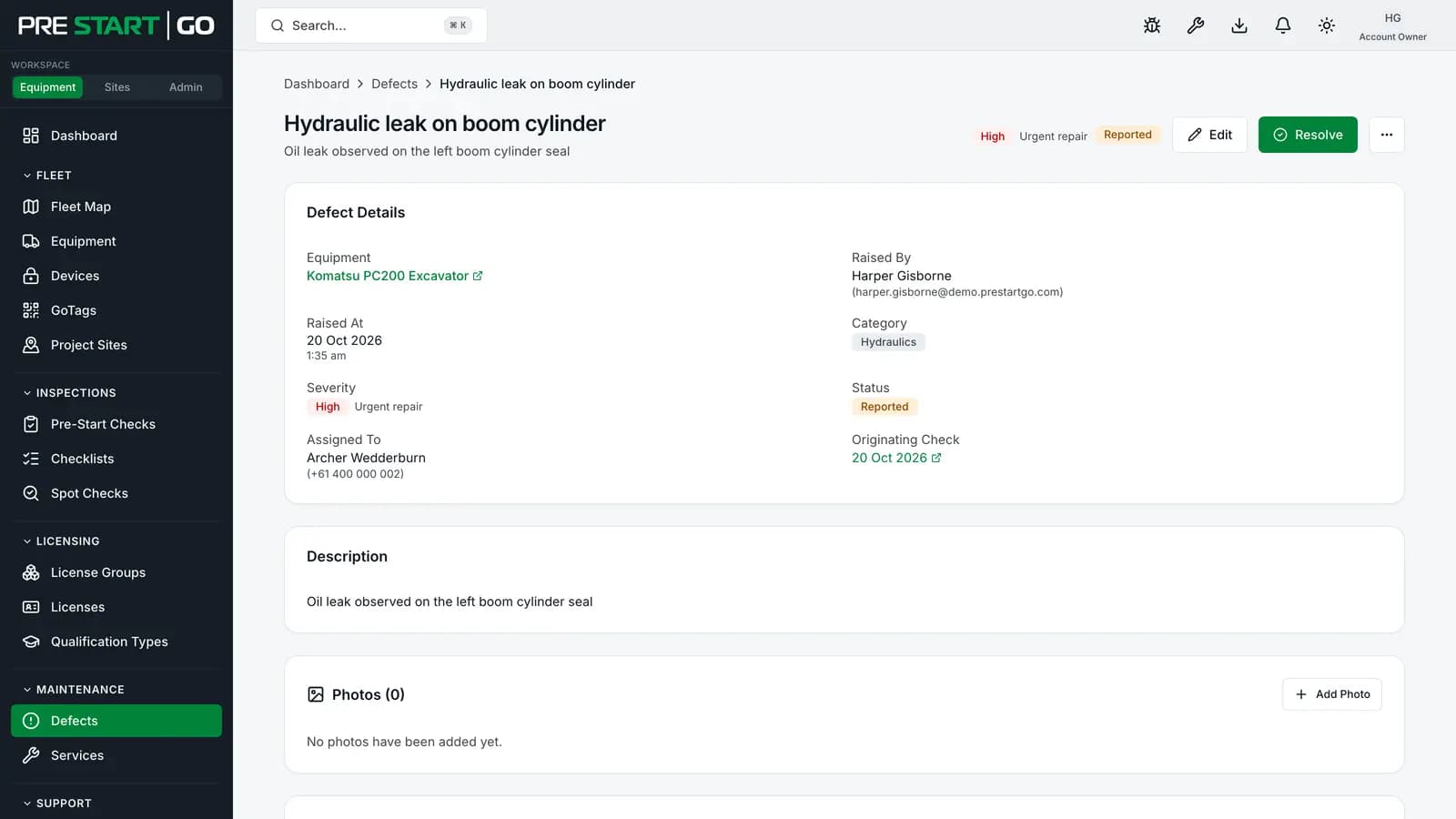
Click into a row. The detail page shows the description, severity, status, photos, comments, and the action buttons.
Defects raised from a failed pre-start carry a link to their originating check — the exact inspection, including the operator's photo evidence from the moment of capture.
Assigning and acknowledging
Edit opens the assignment section — route the work to yourself, another user, or an external party (with a free-text reference for your maintenance provider's ticket number). Then Acknowledge, under the More actions menu (⋯) beside Resolve, moves Reported → Acknowledged: the signal to everyone watching that the defect has been seen and owned. Assignment and acknowledgement can (and usually should) happen well before the physical repair does.
Resolving and closing
Resolve when the underlying issue is actually fixed. The dialog requires resolution notes — "Seatbelt replaced and function-tested" — and the requirement is deliberate: an unexplained resolution is worth little in an audit three months later. The defect records who resolved it, when, and the notes.
Close is the final sign-off, once the fix is verified. In the console it needs a Contributor or above — the same role as resolving — and in the app a Supervisor, Technician or Lead licence. Closing also lifts the lockout a failed critical item put on the machine (below), so grant Contributor with that in mind. A resolved defect can also be reopened back to Acknowledged if the fix didn't hold.
Two automatic paths worth knowing: a service job raised from a defect auto-resolves that defect when the service completes (unless a critical item on its checklist fails, which leaves the defect open and locks the machine), and operators can resolve their own reported defect in the field with a mandatory note — see Defect Management Workflow.
Warning
Don't resolve without genuine verification. Prematurely resolving a safety defect bypasses the control it exists to enforce — and the action is permanently recorded against your account.
The out-of-service lockout
A defect flagged out of service holds its machine: the machine fails every pre-start while the flag stands, regardless of checklist answers. The flag gets there one of two ways:
- A failed critical item — on a pre-start or a service checklist — sets it on that item's defect automatically. Closing the defect lifts it automatically too; resolving it, or completing its service, doesn't. The app's emergency bypass still works under it.
- A Technician or Lead sets it by hand, in the app, for a fault the pre-start didn't catch. That one also refuses every unlock, the app's bypass included, and only a person lifts it: closing the defect never does.
Setting the flag by hand needs a Technician or Lead licence for the machine's group. Either kind can be lifted by hand: by a Technician or Lead in the app, or from the console by an Administrator and above — the break-glass so a machine is never stranded when no technician is available. The console shows the "Out of Service" badge and offers Lift only.
Bulk updates
Select multiple rows for a bulk status change — useful after a service day clears a batch of related defects. Bulk moves obey the same lifecycle rules as single moves; anything that can't legally transition is reported rather than silently skipped.
Edge cases
- Withdrawn defects — a reporter can withdraw their own defect within a short window of raising it, while it is still Reported (honest mistakes happen); after that, the record stands and the remedy is resolve-with-a-note. Withdrawn defects disappear from the queue but remain in the record.
- A defect holding its machine out of service can't be withdrawn, and Delete refuses it until the lockout is lifted, so a lock is never removed by removing its defect.
- Two people, one defect — concurrent updates are safe: the second writer is told the defect changed rather than silently overwriting the first.
- Hired-out machines — defects live with the machine's owner, so both the owner and the operating organisation see and can work them; actions are attributed with their cross-organisation context. See Cross-Org Equipment Rental.
Troubleshooting
| Symptom | Likely cause | What to do |
|---|---|---|
| Close missing or greyed out | It isn't resolved yet, or you're a Read-only user | Close shows on a resolved defect and needs Contributor or above |
| Can't lift an out-of-service flag | Role below Administrator | An Administrator, the Account Owner, or a field Technician or Lead lifts it |
| Resolve dialog won't submit | Notes empty | Resolution notes are mandatory |
| "Defect was modified" error on save | Someone else changed it while you had it open | Reload and re-apply — nothing was lost |
| Machine still blocked after resolving | Resolving never lifts the out-of-service flag | Close the defect if a failed critical item set the flag; otherwise lift it explicitly |
| Delete refused: "holding the equipment out of service" | The defect's lockout is on | Lift the lockout first (Administrator and above), then delete |